Signal Brief
How to Get the LinkedIn TOTP Secret Key (Step-by-Step Guide)
To connect your LinkedIn account with Recepto.ai, you need to provide the LinkedIn TOTP secret key. LinkedIn generates this key when you enable two-factor authentication using an authenticator app. Recepto uses this secret to generate secure login codes and maintain a stable LinkedIn session. This guide shows exactly how to retrieve the LinkedIn TOTP secret key from LinkedIn settings.

Two-factor authentication (2FA) adds an additional layer of security to your LinkedIn account. Instead of relying only on your password, LinkedIn will also require a temporary verification code generated by an authenticator app.
LinkedIn supports TOTP (Time-Based One-Time Password) authentication. When this feature is enabled, LinkedIn generates a secret key that can be used with authenticator apps such as Google Authenticator or Microsoft Authenticator.
This guide explains how to locate and copy the LinkedIn TOTP secret key step by step.
Step 1 — Open the LinkedIn Menu
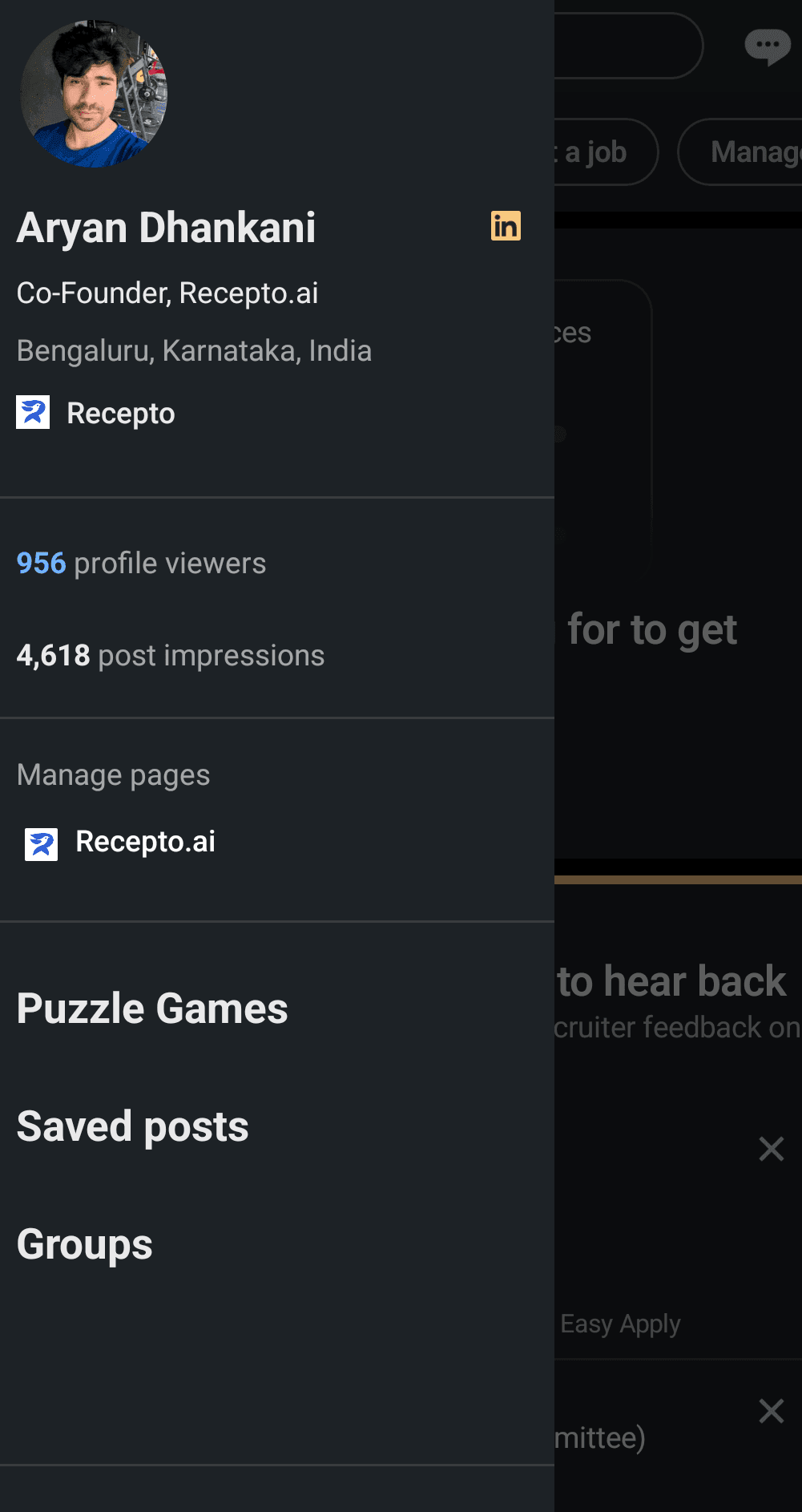
Open the LinkedIn mobile app and tap your profile icon to open the sidebar menu. From the menu, tap Settings to access your account configuration.
Step 2 — Go to Settings
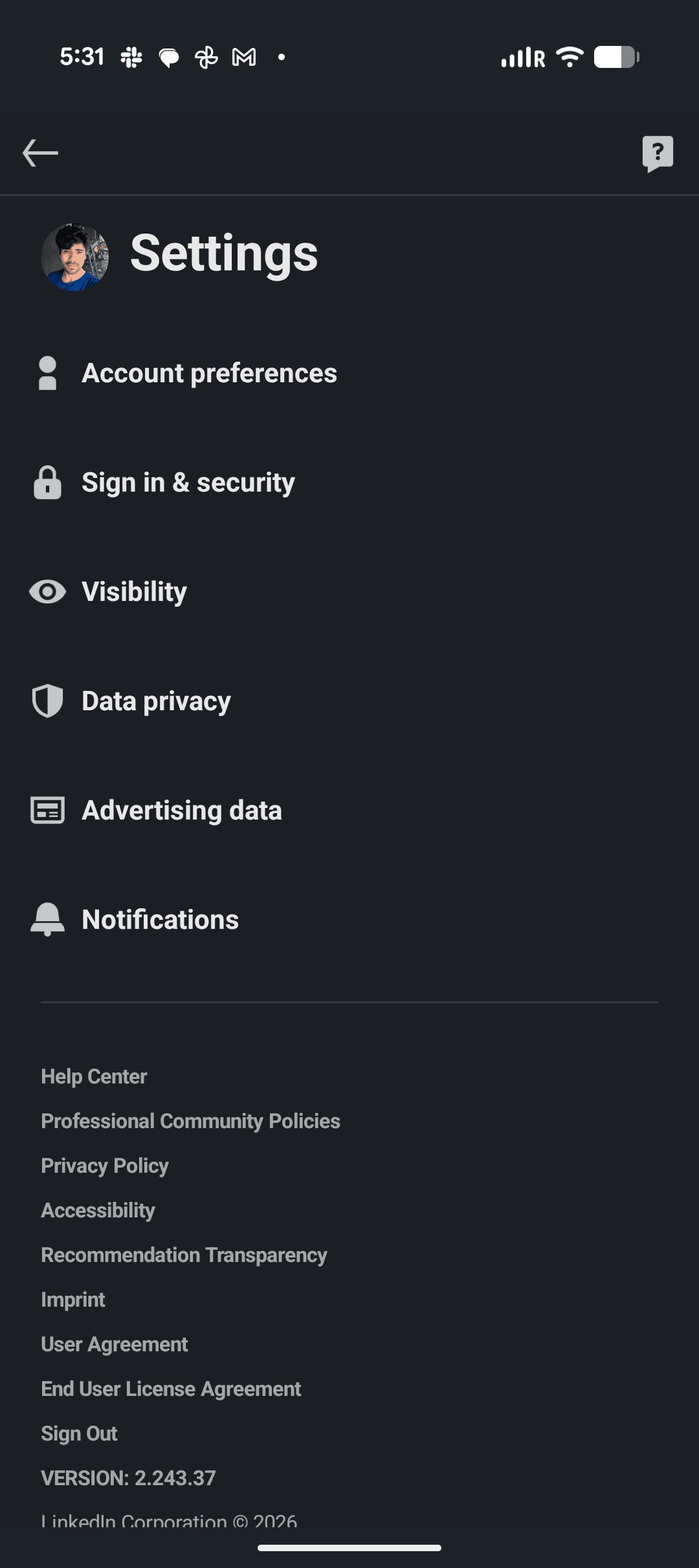
After tapping Settings, LinkedIn will open the main settings page where you can manage your account preferences.
This page includes sections such as account preferences, sign in & security, visibility, data privacy, and notification settings.
To continue, locate and tap Sign in & security.
Step 3 — Open Sign in Security Settings
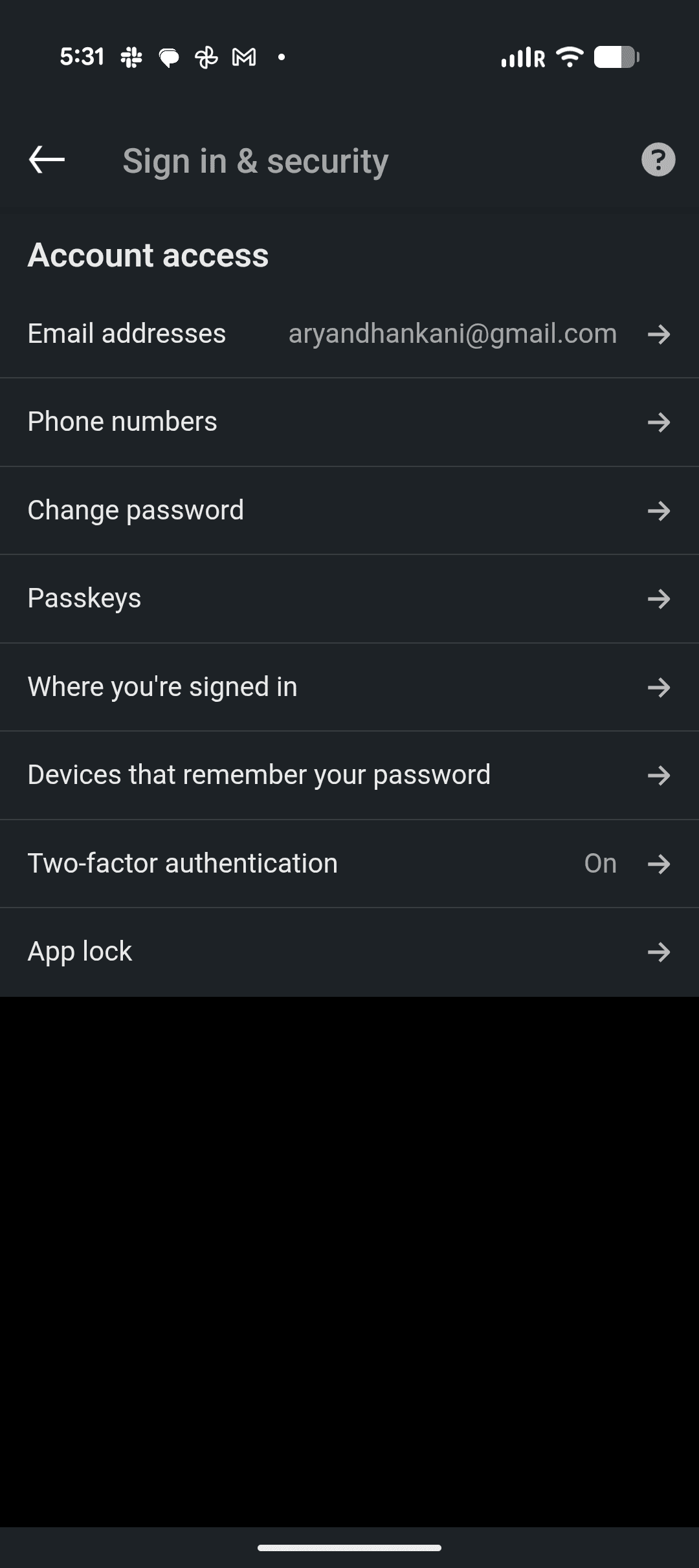
The Sign in & security section contains all the login and authentication settings for your LinkedIn account.
Here you will see options such as email addresses, phone numbers, password settings, and two-factor authentication.
Scroll until you find Two-factor authentication and tap it.
Step 4 — Open Two-Factor Authentication Settings
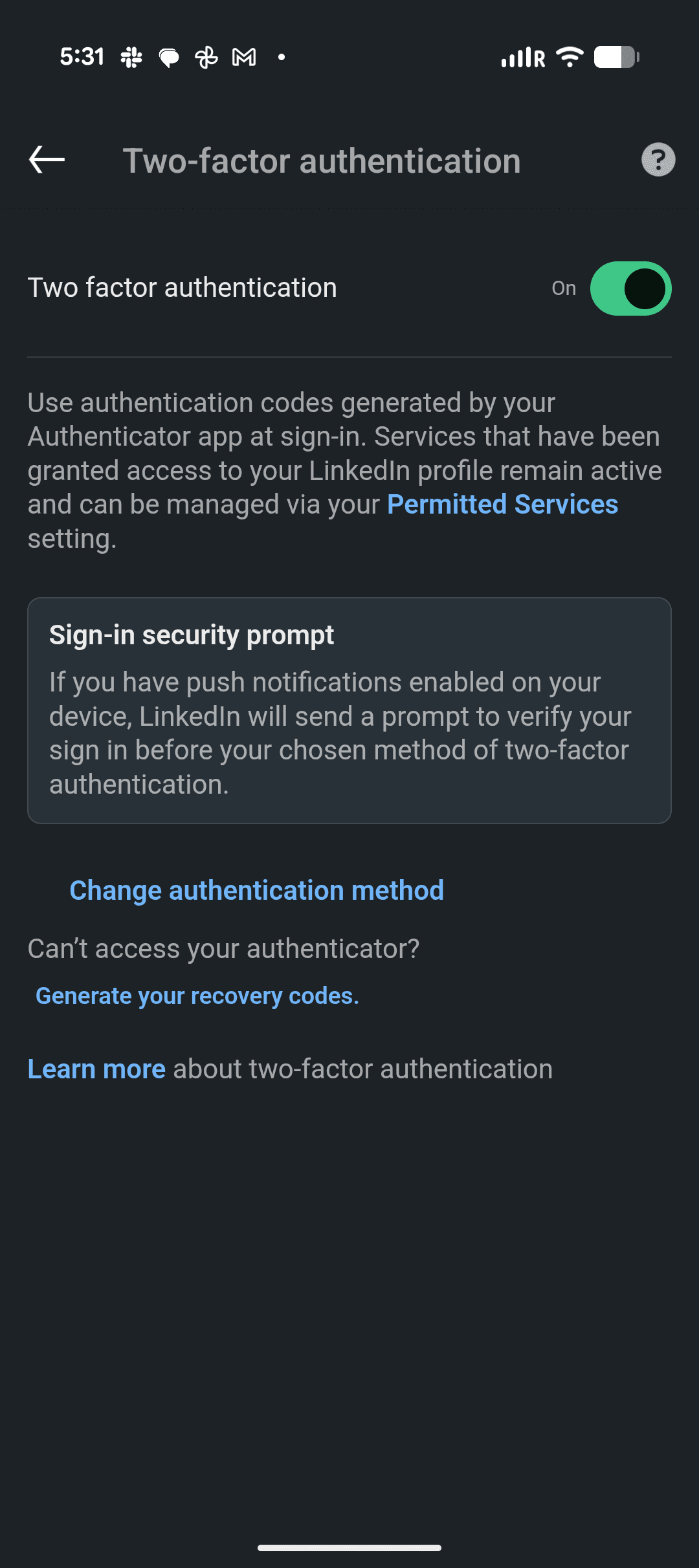
You will now see the two-factor authentication settings screen.
If two-factor authentication is already enabled, LinkedIn will show the current authentication method.
Tap Change authentication method so you can configure an authenticator app.
Step 5 — Choose Authenticator App
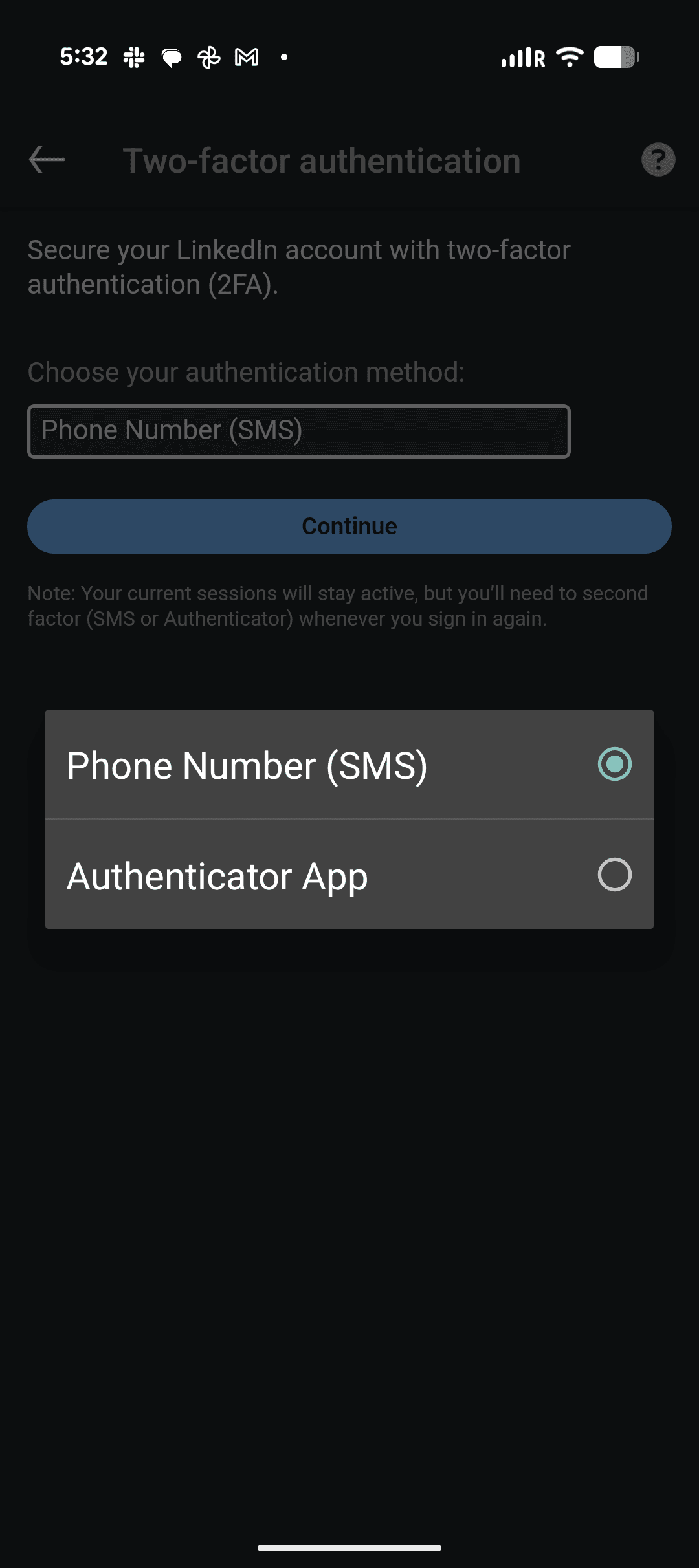
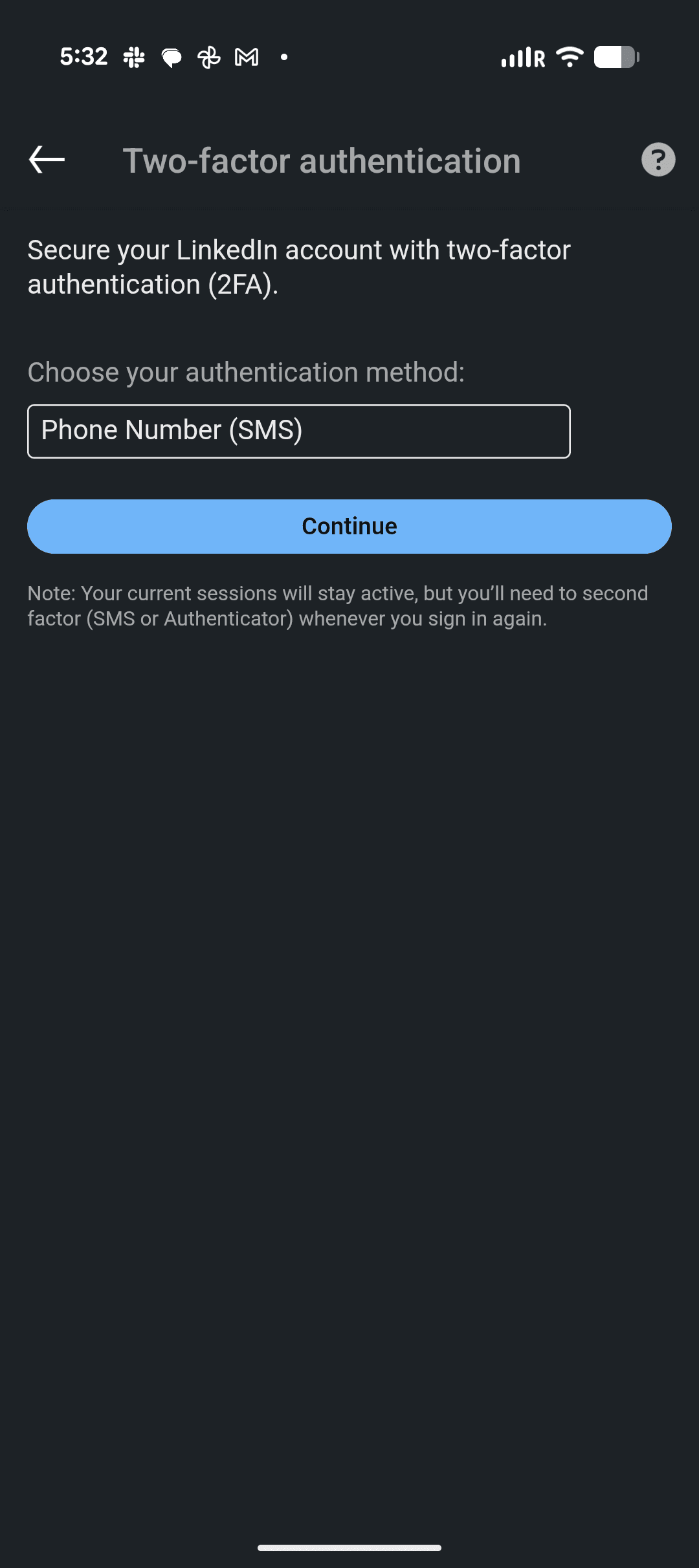
LinkedIn will ask you to choose the authentication method you want to use.
You will see two available options:
Phone Number (SMS)
Authenticator App
Select Authenticator App and tap Continue.
Step 6 — Verify Your Identity
For security purposes, LinkedIn will send a verification code to your registered email address.
Enter the 6-digit verification code that you receive in your email.
After entering the code, tap Submit to continue.
Step 7 — Copy the LinkedIn TOTP Secret Key
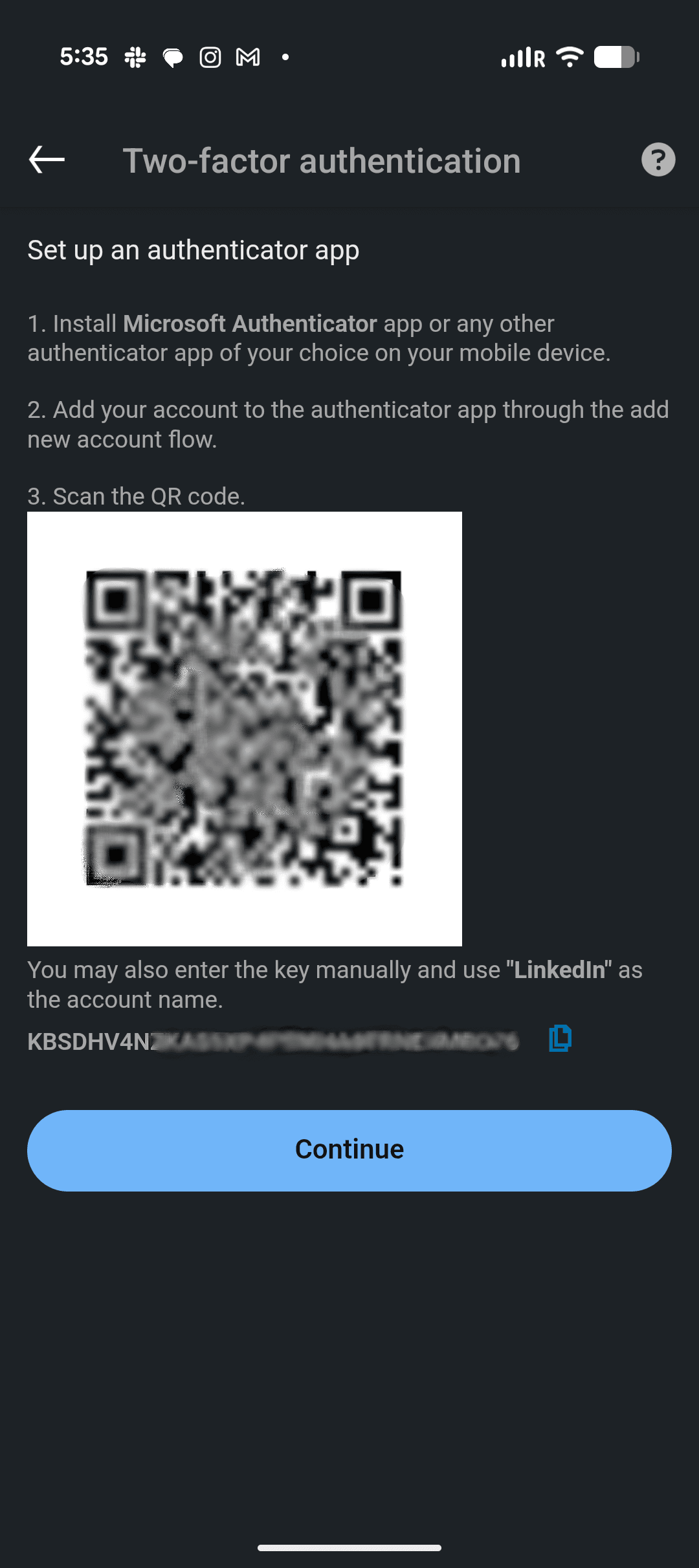
After verification, LinkedIn will display the authenticator setup screen.
This screen contains a QR code along with a manual secret key displayed below it.
The secret key looks similar to the following format:
KBSDHV4N...............
Copy this secret key. You will need to paste it into Authenticator app and Recepto.ai to connect your LinkedIn account.
Important: Make sure you copy the secret key before continuing. If you only scan the QR code with an authenticator app, LinkedIn may not display the key again.
Step 8 — Confirm Authenticator Setup
After adding the account to your authenticator app by pasting the copied key in it, the app will begin generating 6-digit verification codes that refresh every 30 seconds.
Enter the code generated by your authenticator app on the LinkedIn screen.
Tap Continue to complete the two-factor authentication setup.
Step 9 — Paste the Secret Key in Recepto.ai
Once you have copied the LinkedIn TOTP secret key, open Recepto.ai and navigate to the LinkedIn connection setup.
Paste the same secret key into the LinkedIn authentication field.
Recepto will use this key to generate time-based verification codes automatically and maintain a secure LinkedIn session for outbound automation.